
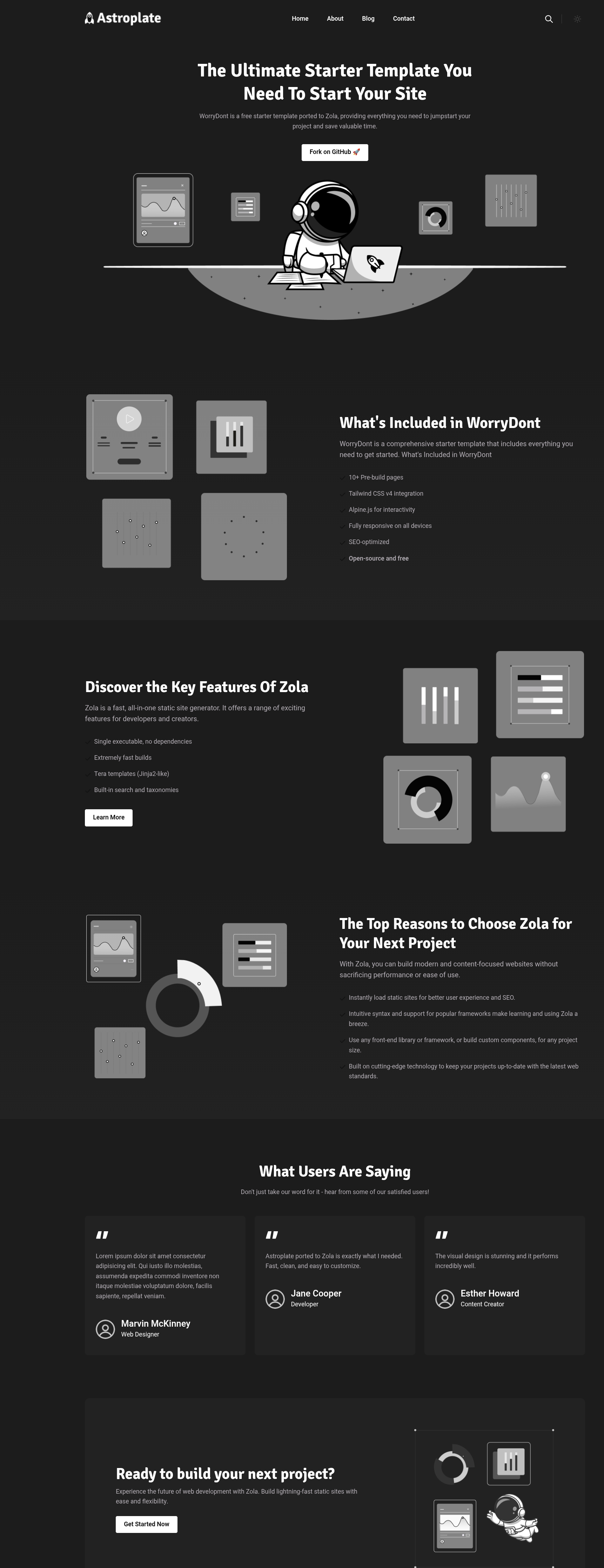
A port of Astroplate to Zola, built on the Zolarwind architecture. Tailwind v4, i18n, client-side search, dark/light mode, taxonomies.
A live demo is published to GitHub Pages: https://worrydont.github.io/zola-astroplate/
The demo is built straight from this repository — the repo root doubles as a minimal Zola site that uses the theme as its own theme, so it also serves as a build-time smoke test on every push.
config.toml sets theme = "zola-astroplate" and a small content/ tree (home,
blog/ + one post, and an about page) drives the build.themes/zola-astroplate -> .. lets Zola resolve the theme to the repo itself,
so no template files are duplicated.compile_sass = false; the demo reuses the committed static/css/generated.css (no Tailwind
build required).Requires Zola 0.22.1 (pinned in mise.toml). From a standalone checkout of this repo:
zola build             # output at ./public
zola serve             # live preview at http://127.0.0.1:1111
Nested-submodule caveat: when this repo is checked out as a submodule inside the consuming Zola site (
worrydont-zola), thethemes/zola-astroplate -> ..self-theme symlink lets Zola resolve the site root to the parent site, so a build run from that nested path builds the parent site instead of the demo. Preview the demo from a standalone clone. CI always uses a standalone checkout, so this does not affect deployment.The deploy workflow (
.github/workflows/deploy-gh-pages.yml) builds withzola build -o publicand publishespublic/to thegh-pagesbranch viapeaceiris/actions-gh-pages.
As a git submodule (recommended — easy updates):
git submodule add https://github.com/worrydont/zola-astroplate themes/zola-astroplateOr a plain clone into your site's themes/ directory:
git clone https://github.com/worrydont/zola-astroplate themes/zola-astroplateIn your site's config.toml (or zola.toml), set the theme at the top level of the file:
theme = "zola-astroplate"This theme loads its i18n strings via an [extra] variable — point it at the theme's i18n/ dir:
[extra]
path_language_resources = "themes/zola-astroplate/i18n/"Copy this as a starting point and adjust:
compile_sass = false
build_search_index = true
generate_feeds = true

taxonomies = [
    { name = "tags", paginate_by = 6, feed = true },
    { name = "categories", paginate_by = 6, feed = true },
]

[extra]
title = "Your Site"
site_description = "Your description"
copyright = "Copyright {year} by You"
author = { name = "You", homepage = "https://example.com" }
path_language_resources = "themes/zola-astroplate/i18n/"
favicon_svg = "/img/favicon.svg"
logo = "/images/logo.png"
logo_darkmode = "/images/logo-darkmode.png"

menu_pages = [
    { title = "Home", url = "/" },
    { title = "Blog", url = "/blog/" },
]
footer_pages = [
    { title = "Privacy Policy", url = "/pages/privacy/" },
]
social_links = [
    # { name = "github", enabled = true, link = "...", svg = '...' },
]

# Optional: override brand colors (see "White-label Theming" below)
[extra.theme]
# primary = "#FF5733"

# Optional: hide homepage sections (default: all enabled)
[extra.sections]
# banner = false
Dark/light toggle icons are supplied via [extra.displaymode.sun] / [extra.displaymode.moon]
(inline SVG). See this theme's source/demo site for a complete working [extra] block.
The theme is fully rebrandable via zola.toml without touching any template or CSS files.
Token defaults live in one place: the Tailwind @theme block in the committed
static/css/generated.css. The theme-vars.html partial emits a <style> block in <head>
after the stylesheet <link>, so equal-specificity overrides win by source order — no
!important needed. Only tokens you explicitly set in [extra.theme] are emitted; unset tokens
fall through to the Tailwind defaults untouched.
During a dev session the customizer adds a third layer of inline styles on document.documentElement
(see Live Customizer. Precedence: Tailwind defaults →
[extra.theme] overrides → customizer draft.
All tokens are defined in data/tokens.toml. Set any subset in [extra.theme]:
| Key | CSS custom property | Description |
|---|---|---|
primary | --color-primary | Brand/accent color |
body | --color-body | Page background |
border | --color-border | Border color |
light | --color-light | Light surface |
dark | --color-dark | Dark surface |
text | --color-text | Body text |
text_dark | --color-text-dark | Headings / emphasis |
text_light | --color-text-light | Muted / secondary text |
| Key | CSS custom property | Description |
|---|---|---|
darkmode_primary | --color-darkmode-primary | Brand/accent (dark) |
darkmode_body | --color-darkmode-body | Page background (dark) |
darkmode_border | --color-darkmode-border | Border (dark) |
darkmode_light | --color-darkmode-light | Light surface (dark) |
darkmode_dark | --color-darkmode-dark | Dark surface (dark) |
darkmode_text | --color-darkmode-text | Body text (dark) |
darkmode_text_dark | --color-darkmode-text-dark | Headings / emphasis (dark) |
darkmode_text_light | --color-darkmode-text-light | Muted / secondary text (dark) |
| Key | CSS custom property | Description |
|---|---|---|
font_primary | --font-primary | Primary (body) font family |
font_secondary | --font-secondary | Secondary (heading) font family |
Font links (Google Fonts or other CDN) can also be injected via font_primary_link /
font_secondary_link in [extra.theme]; the partial emits the <link rel="preconnect"> and
<link rel="stylesheet"> tags automatically.
Example:
[extra.theme]
primary        = "#6366f1"
body           = "#ffffff"
text           = "#374151"
text_dark      = "#111827"
text_light     = "#6b7280"
darkmode_body  = "#0f172a"
font_primary   = "'Inter', sans-serif"
font_primary_link = "https://fonts.googleapis.com/css2?family=Inter:wght@400;500;700&display=swap"Control which homepage sections render via [extra.sections]. All sections are enabled by
default — add the block only when you want to disable something:
[extra.sections]
banner       = true   # default
features     = true   # default
testimonials = false  # omit from output
cta          = true   # default
In a production build (mise run build) a disabled section is completely absent from the
generated HTML — no wrapper, no content. Existing sites with no [extra.sections] block continue
to render all sections unchanged.
Home sections and navigation are wrapped in named Tera blocks so a consuming site can override a
single piece without replacing the whole template. Create a templates/index.html (or
templates/partials/header.html) in your site that extends the theme's version and redefines only
the block you need:
{%/* extends "zola-astroplate/templates/index.html" */%}

{%/* block section_features */%}
  <div>Your custom features markup</div>
{%/* endblock section_features */%}
Available blocks:
section_banner, section_features, section_testimonials, section_cta — in
templates/index.html, one per homepage section.navigation (desktop) and navigation_mobile (mobile) — in templates/partials/header.html.Overriding a block leaves every other block at the theme default — no other markup changes.
Navigation resolves from tiered sources, in increasing precedence:
config.extra.menu_pages (built-in default) — the menu_pages array under [extra] in
your site's config.toml.navigation.toml — an optional file at your site root (next to config.toml,
not inside the theme), loaded via load_data(path="navigation.toml", required=false). If
present, it overrides config.extra.menu_pages entirely. If absent, the build does not
error and the config default is used.{%/* block navigation */%} / {%/* block navigation_mobile */%} override — a site template that
extends templates/partials/header.html and redefines these blocks supersedes both of the
above.All sources normalize to { title, url } before rendering, so a navigation.toml using
alternate field names (name/path) still renders correctly:
# navigation.toml (site root)
menu_pages = [
    { name = "Home", path = "/" },
    { name = "Blog", path = "/blog/" },
]The theme ships a floating customizer panel for rapid brand prototyping directly in the browser.
It is automatically gated to development. No config flag needed. The customizer appears when
you run mise run serve (which starts a pitchfork background daemon with ZOLA_ENV=dev) and is
completely absent from mise run build output — it cannot accidentally ship to production.
mise run serve — starts the Zola dev server in the background via pitchfork; ready at http://127.0.0.1:1111. Use mise run stop to stop it.sessionStorage).[extra.theme] and [extra.sections] blocks in zola.toml to
commit the changes.zola.toml currently
configures (or Tailwind defaults if nothing is set).The Context tab pretty-prints the current template's page, section, and config objects
as JSON, to make it easy to see what data is available while building or overriding templates.
Like the rest of the customizer, it reuses the existing ZOLA_ENV=dev gate — no separate flag —
and is never emitted in a production build.
The customizer draft (colors, fonts, section toggles) is stored in sessionStorage for the
current tab. On reload the customizer re-applies the draft immediately — you can freely reload
the page while tweaking without losing your place. The draft is discarded when the tab is closed or
after you click Reset.
To spin up a new site from scratch using zola-astroplate:
Create and enter a new directory:
mkdir my-new-site && cd my-new-siteInitialize Git repository:
git initAdd the theme as a submodule:
git submodule add https://github.com/worrydont/zola-astroplate themes/zola-astroplateCreate the initial site structure:
mkdir -p content templates static i18nCopy recommended initial configuration:
Create a zola.toml in your site's root directory and paste the Required / reference
configuration block shown above.
Initialize the homepage content:
Create content/_index.md with homepage sections:
+++
title = "Home"
template = "index.html"

[extra.banner]
enable = true
title = "Welcome to My New Site"
content = "Built with Zola and zola-astroplate theme."
+++
Run the site locally:
zola serveOpen http://127.0.0.1:1111 in your browser.
Override any theme file by creating a file with the same path in your site's templates/ or
static/ directory. Override config values in your [extra] section. See the
Zola theme docs.
To add a new brand token: add one row to data/tokens.toml in the theme submodule. The override
partial, the customizer UI, and the TOML exporter all iterate the registry — no other files need
changing.
This repo ships mise tasks; with mise installed the required tools
(Zola, Node) are provisioned automatically. The compiled static/css/generated.css is
committed, so consumers never need to run Tailwind.
mise run setup       # install Tailwind v4 build deps (npm install)
mise run css:build   # one-off minified build -> static/css/generated.css
mise run css:watch   # rebuild on every change
After changing Tailwind classes or css/main.css, rebuild generated.css and commit it.
Plain npm equivalents (npm install, npm run css:build, npm run css:watch) also work.
A theme is previewed through a site that uses it. Run the Tailwind watcher in the background with
pitchfork (config in pitchfork.toml) while the parent site's
zola serve live-reloads as the CSS rebuilds:
mise run dev    # pitchfork start css  — background Tailwind watcher
mise run logs   # tail the watcher
mise run stop # stop the watcherscreenshot.png (shown above) is committed for the theme gallery. To refresh it, capture the
running demo site at http://127.0.0.1:1111.